1
Create Ports
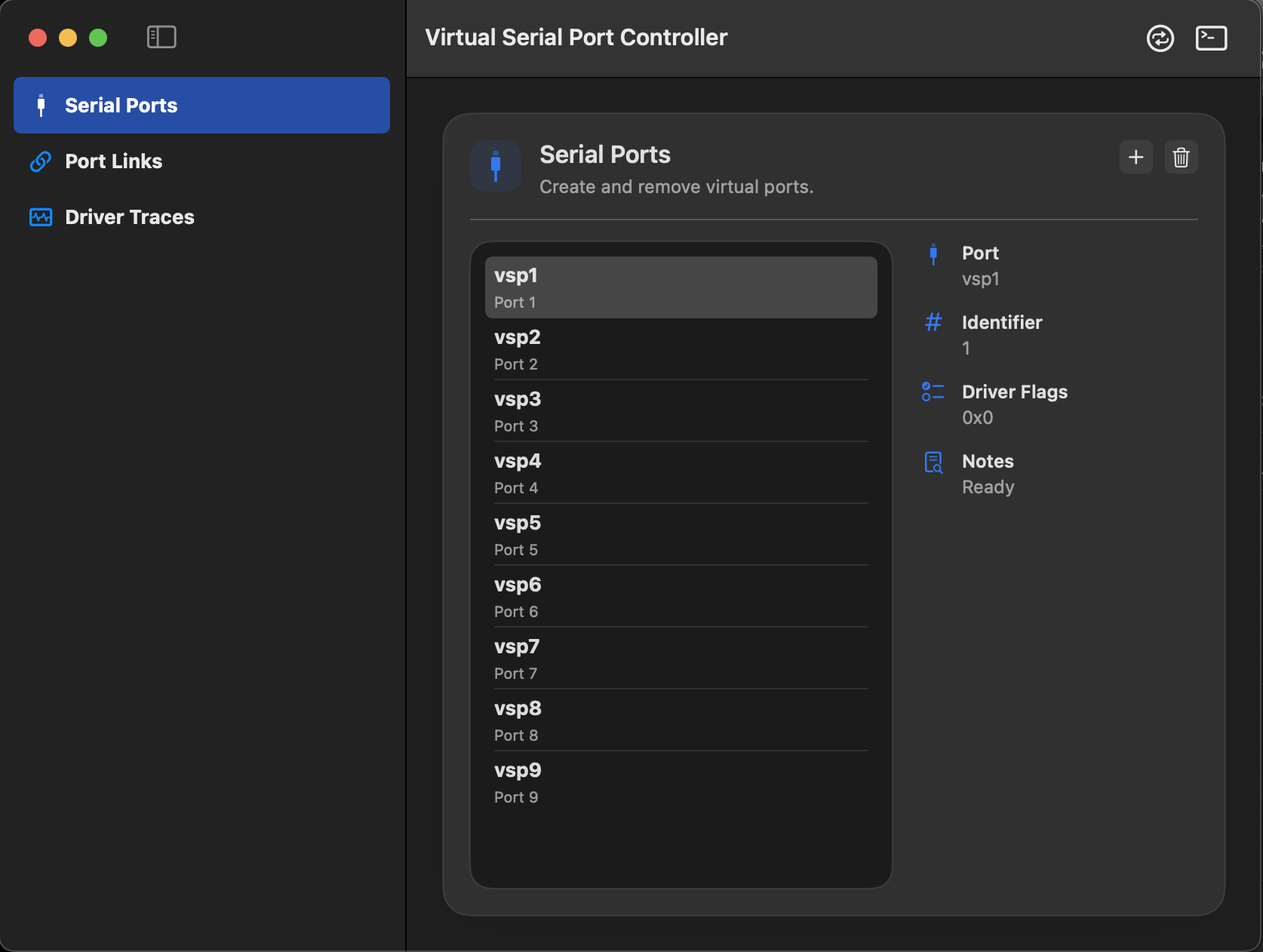
Open Serial Ports and create the required virtual interfaces with matching communication parameters using the plus symbol.
This documentation guides you through VSPClient usage: from port creation to link routing, trace analysis and multi-window terminal testing.
Get from zero to a working test setup in just a few minutes.
Open Serial Ports and create the required virtual interfaces with matching communication parameters using the plus symbol.
Connect two ports directly under Port Links or distribute a source port to two target ports with optional return channel routing.
Open a new serial terminal window via the Terminal icon, select the port and establish the connection.
Send text, files or loop data and observe the remote side. Enable Driver Traces for troubleshooting if needed.
The sidebar of the Virtual Serial Port Controller leads directly to central management and diagnostic functions.
Port list, detail view, create new ports, remove ports and directly recognize when Professional is needed at the license limit.
Point-to-point connections or three-port scenarios with Source, Target and optional Target 2 including response routing.
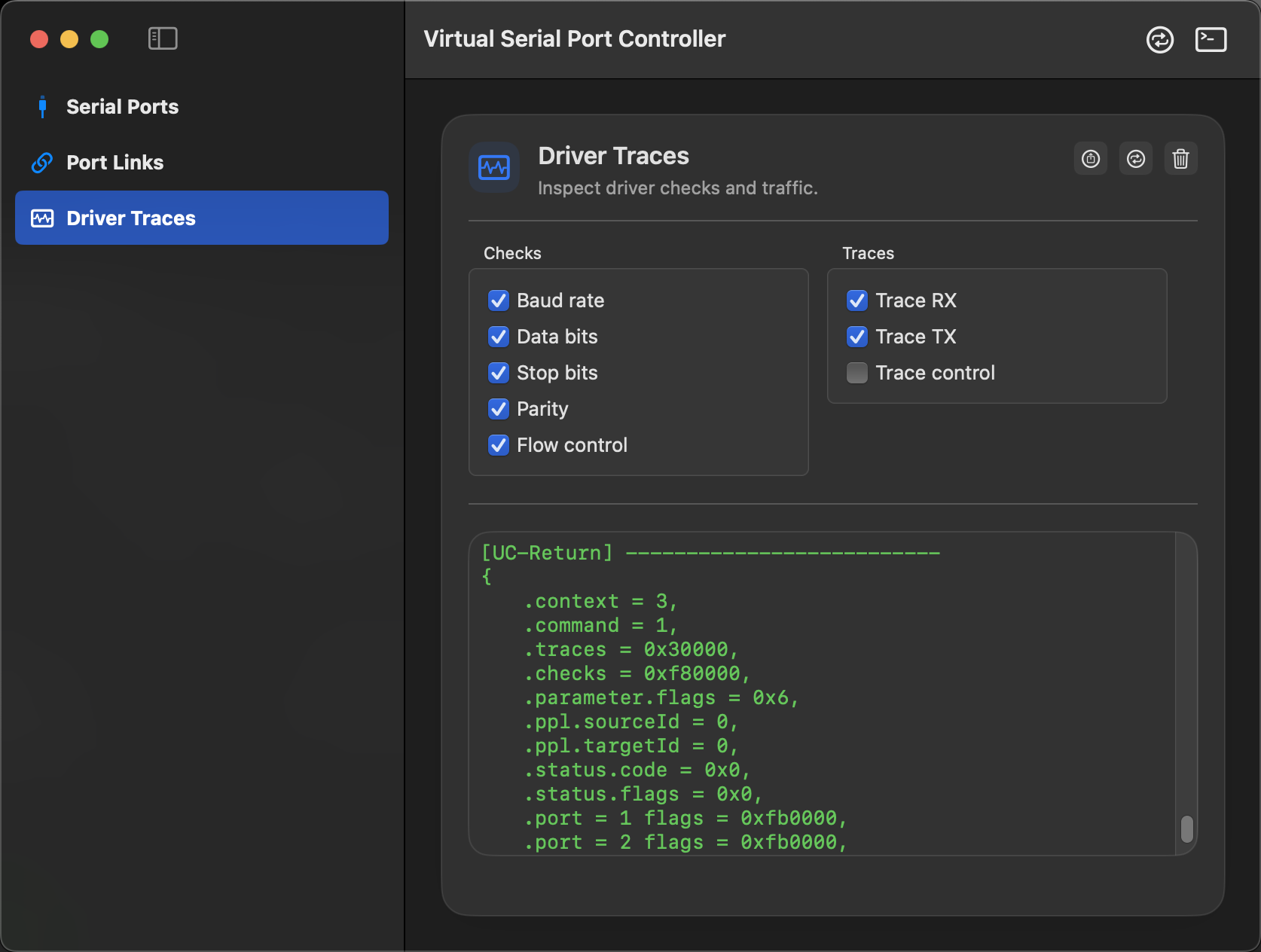
Targetedly check baud rate, data bits, parity and data direction and use the log output for diagnosis and support.
The port area shows existing interfaces on the left and properties of the selected port on the right.
Links represent virtual cables and define how data is forwarded between ports.
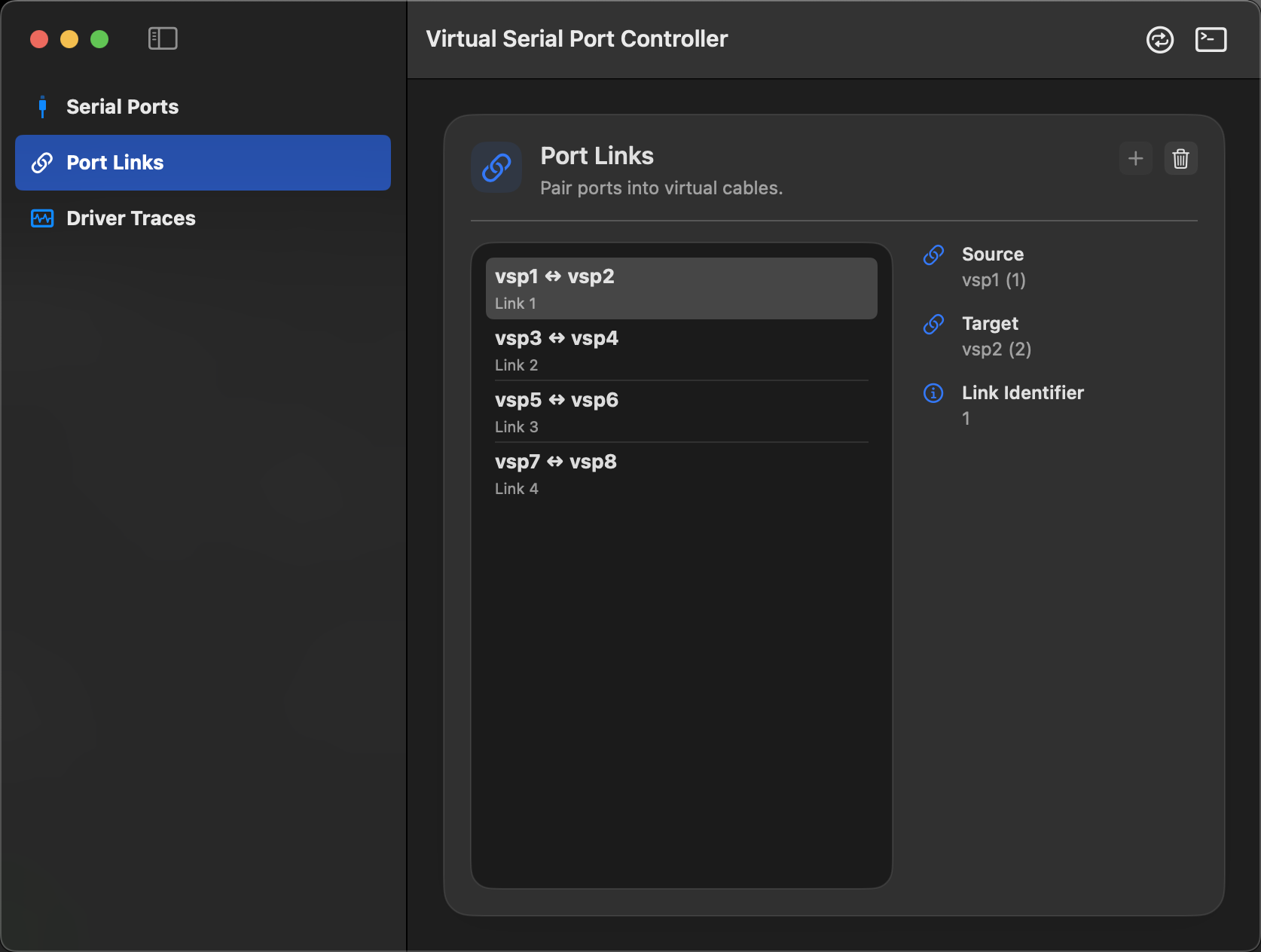
A source port is connected to exactly one target port.
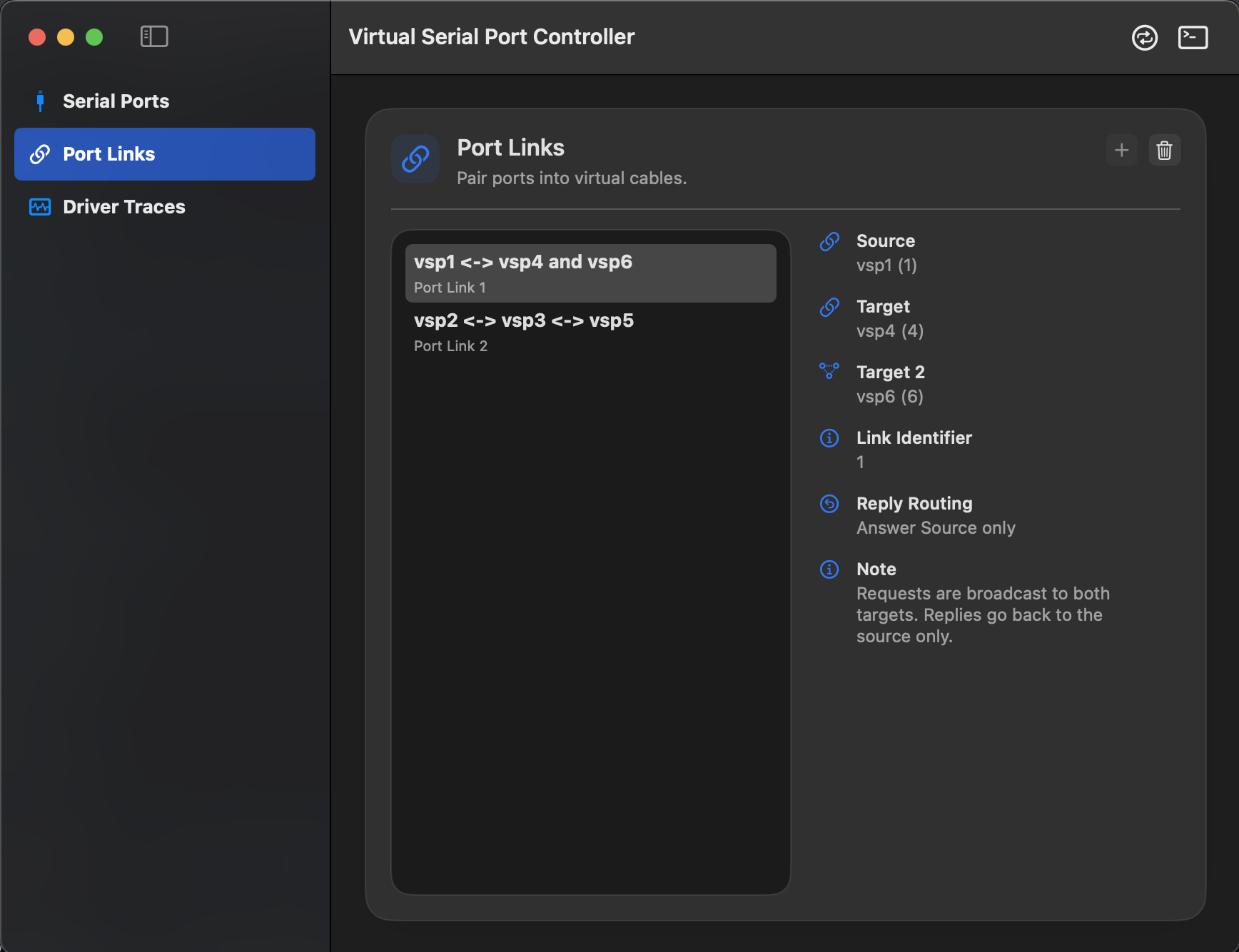
Requests go to both targets, responses come only at the source port.
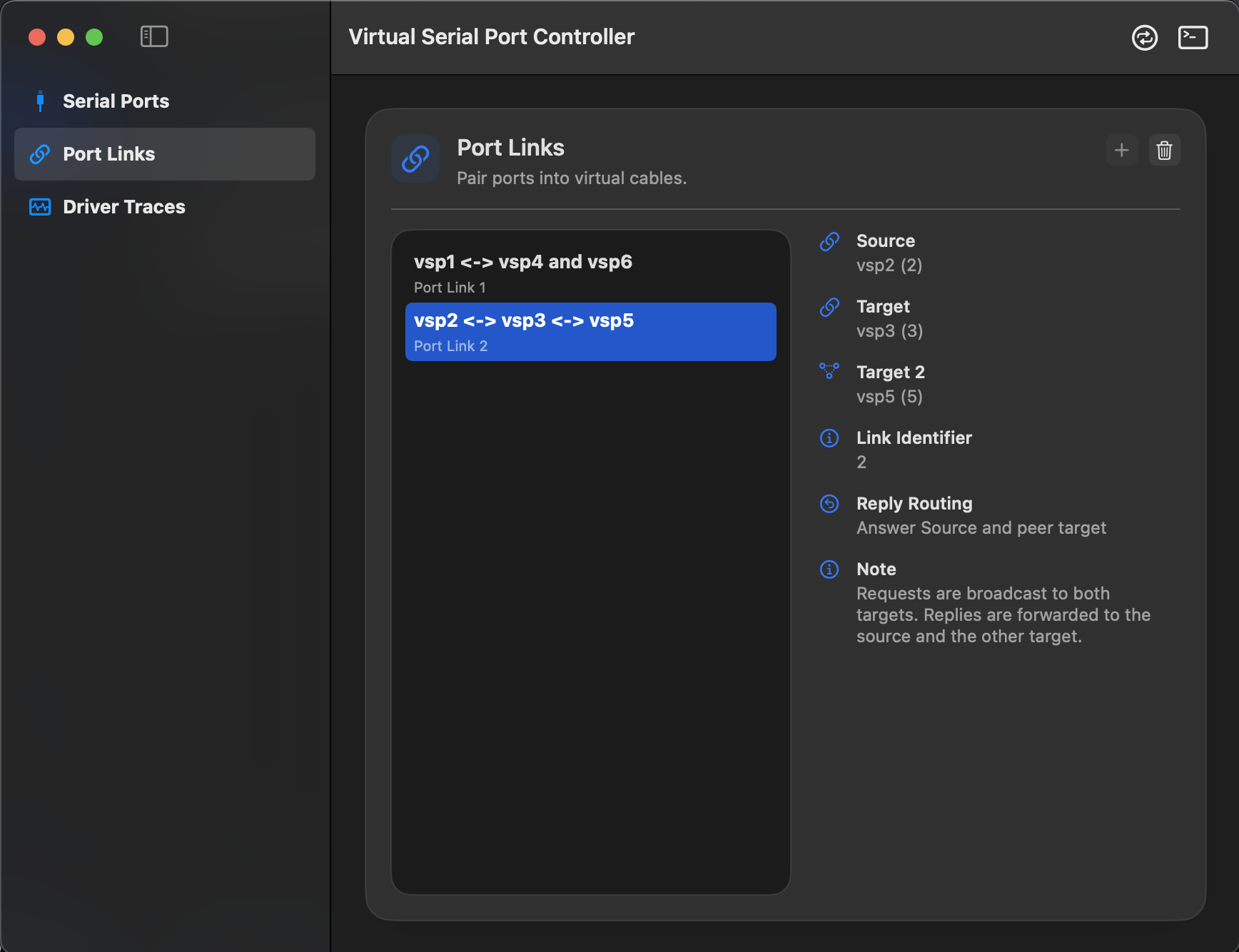
Responses are forwarded to the source and the other target port.
New links can only be created when at least two free, not yet linked virtual ports are available.
Use this area for diagnosis and verification of parameter handover and data flow.
The terminal is the direct test surface for serial I/O with single or multiple virtual ports.
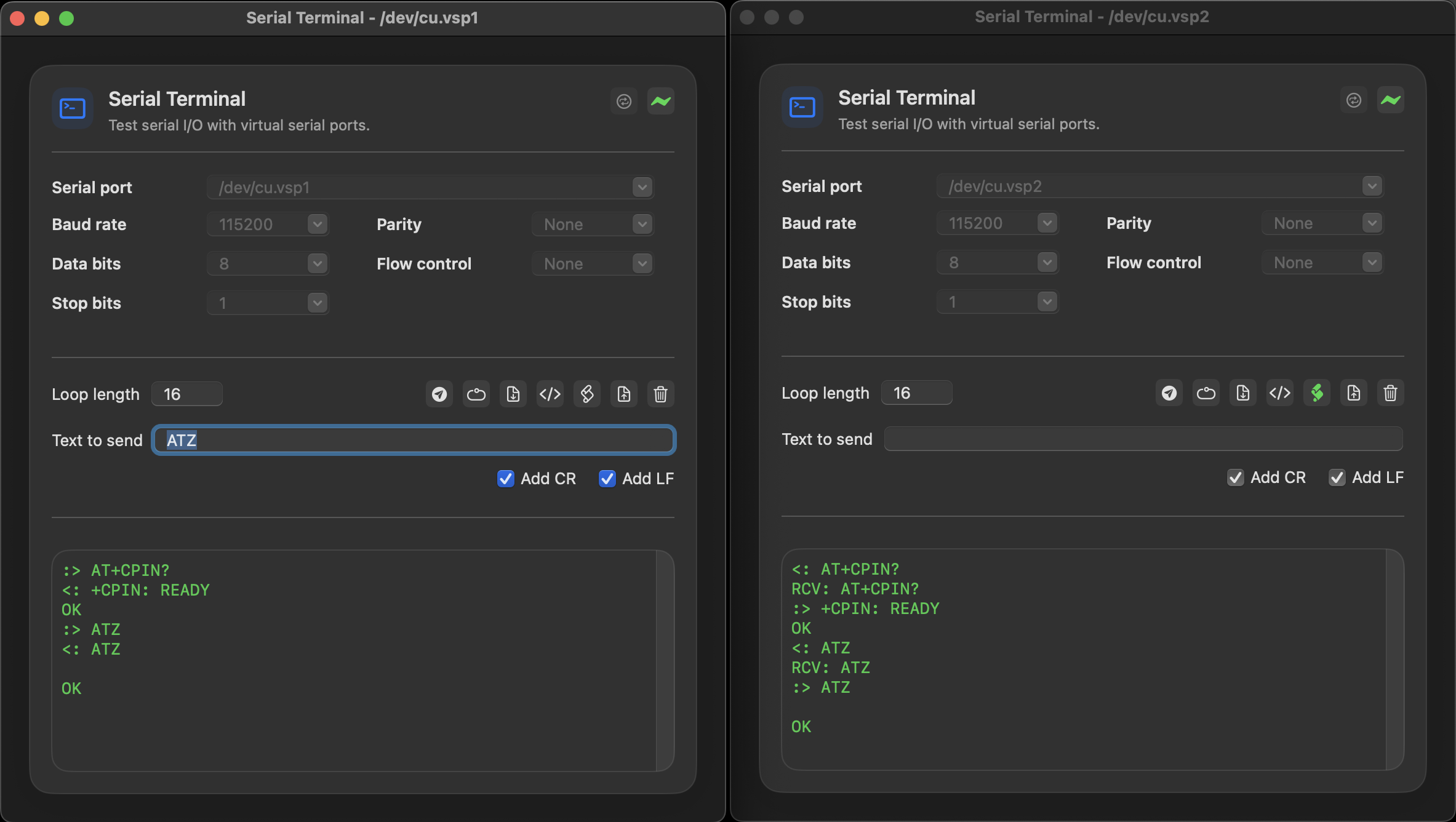
The screens show typical daily tasks: simulate modem commands, trigger script responses and verify broadcast behavior.
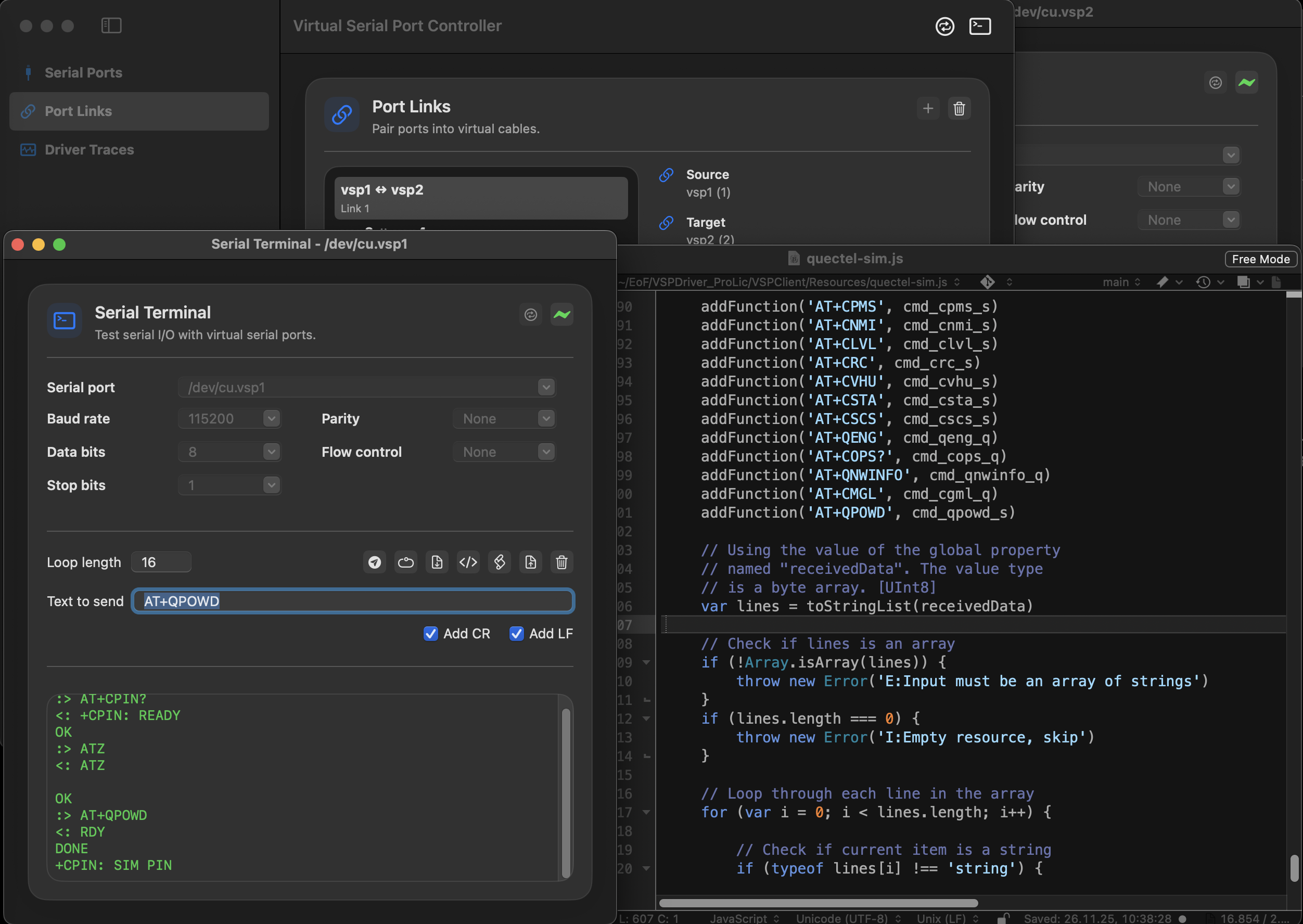
A terminal sends commands while a JavaScript script generates defined responses. Device protocols can be reproducibly simulated this way.
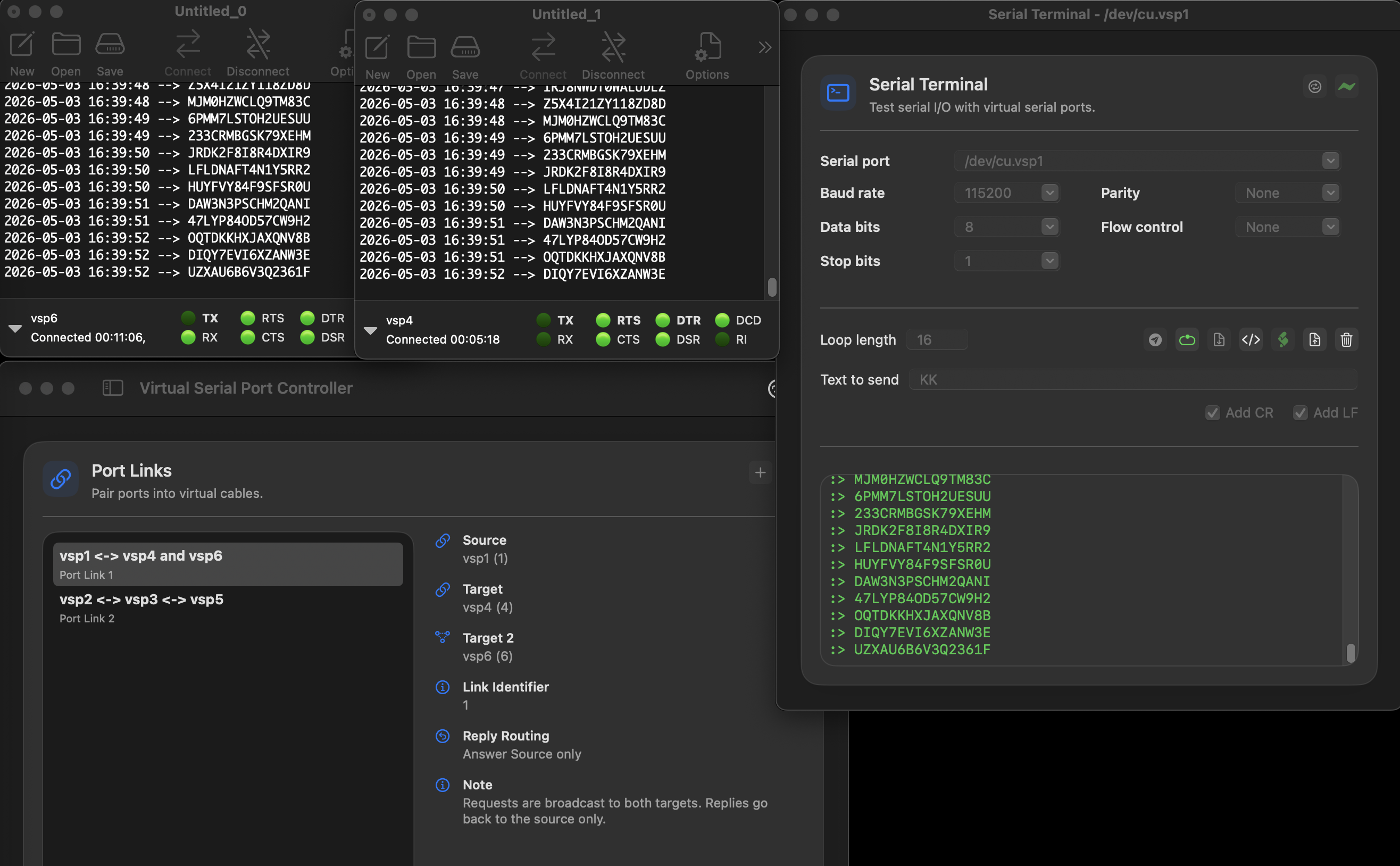
A source port distributes data to two targets. Multiple windows make route, level and results visible simultaneously.
All provided screens collected in one place.